Searchable and Pageable Tables


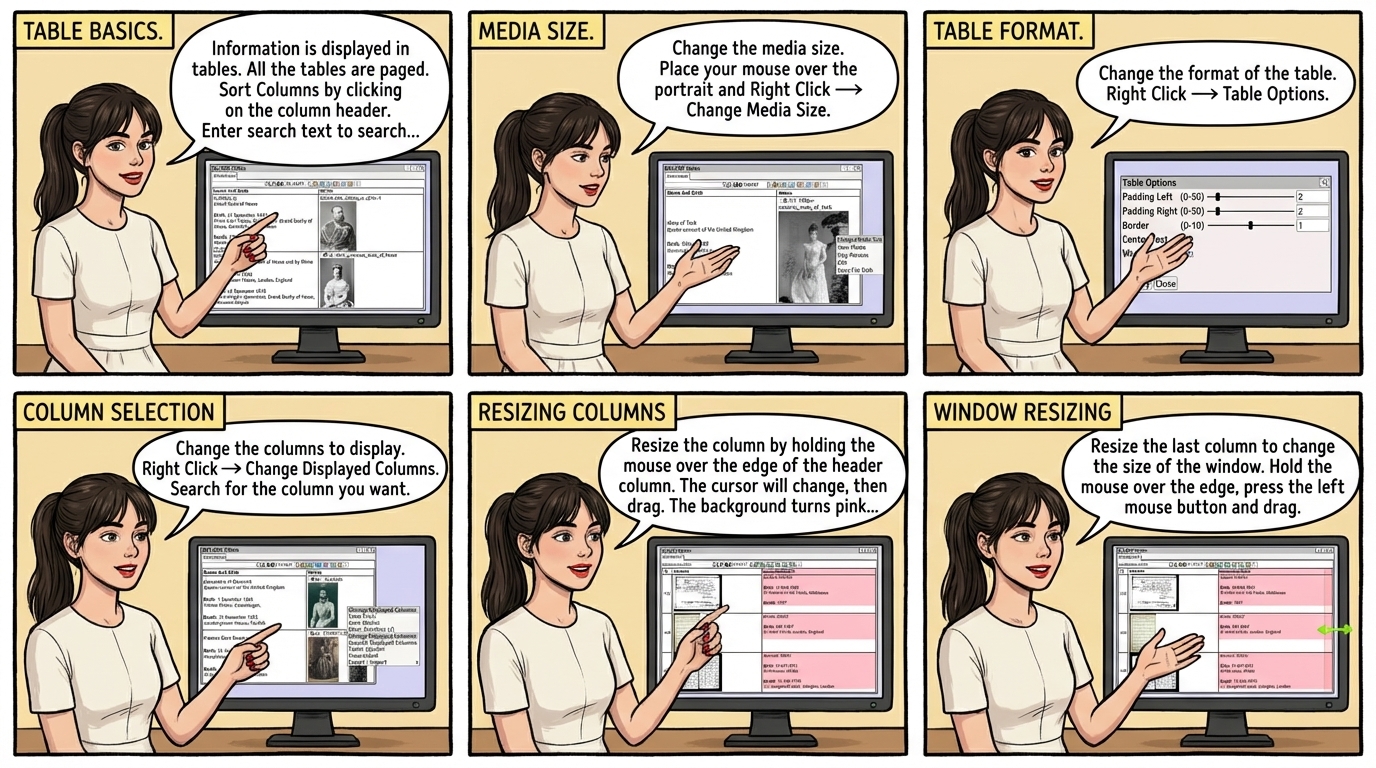
Information is displayed in tables.
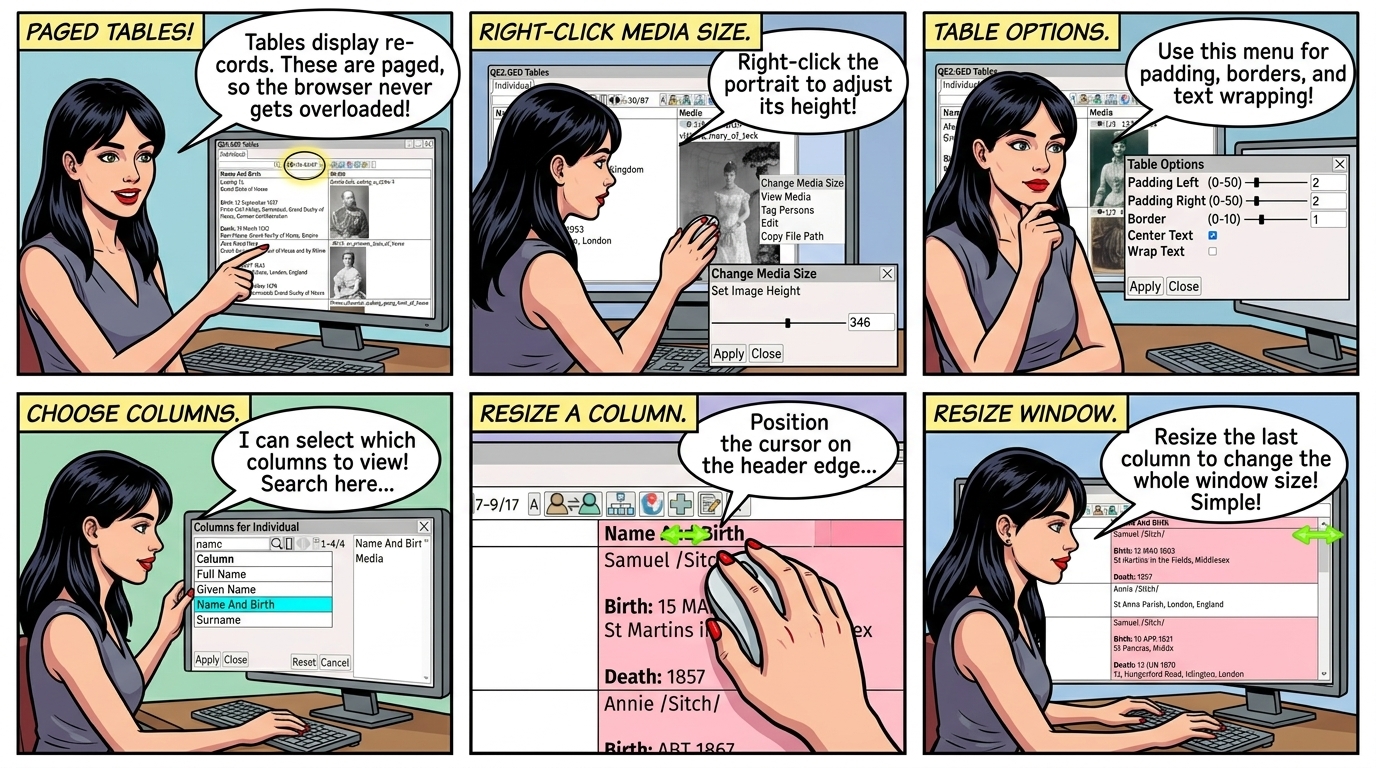
All the tables are paged, so the browser will never have to display too many records at once.
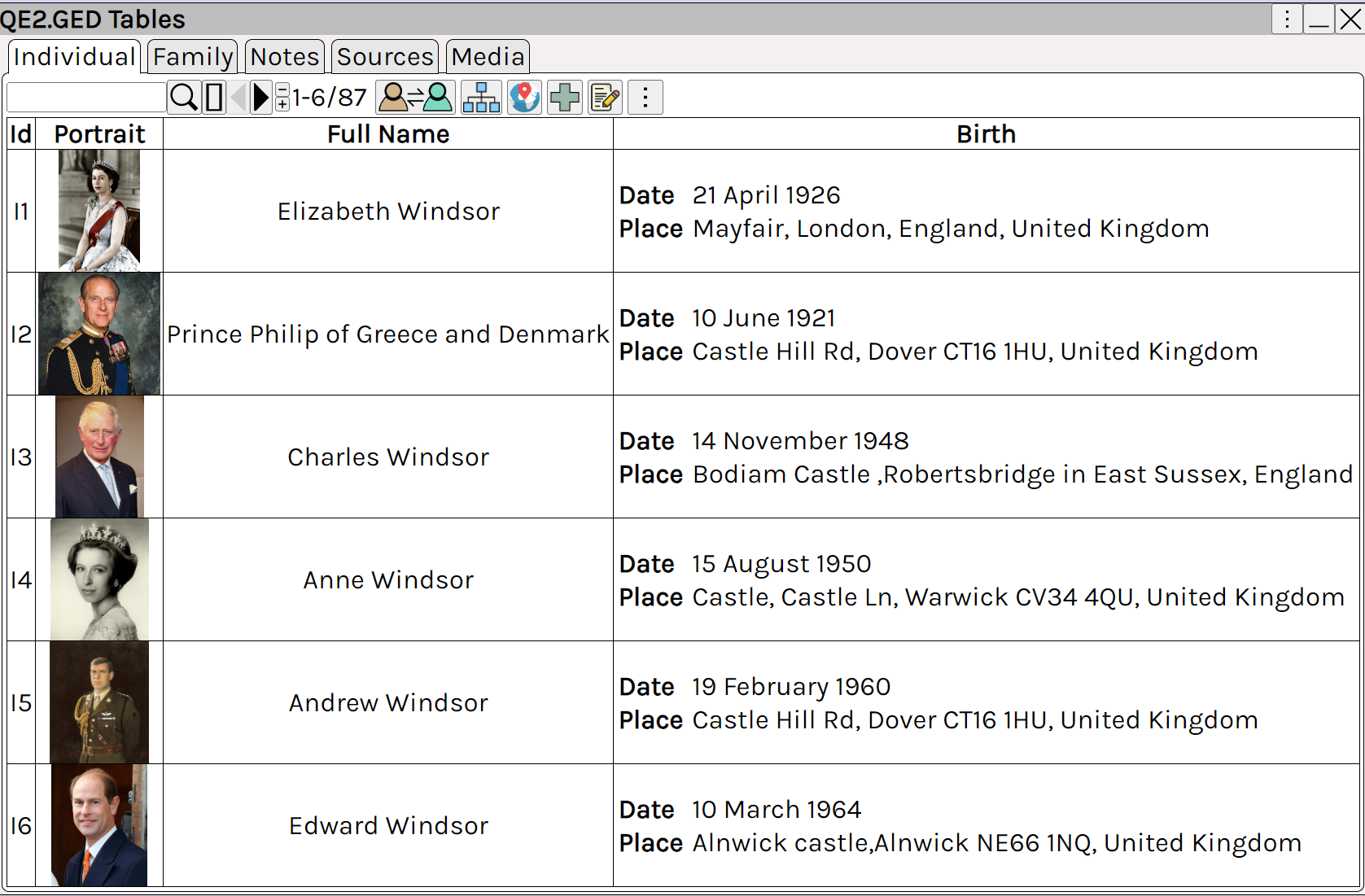
Genealogical table interface in augean.com displaying historical individuals' names, dates, and media portraits. Features a top toolbar for searching and pagination, helping genealogists efficiently organize and navigate large family tree databases without overwhelming the browser.


Sort Columns by clicking on the column header.
Enter search text to search, see  User Interface ⟶ Searching 

   Refresh search, display only the rows that match the search criteria
Clear the search, display all records.
Previous page of search results
Next page of search results
Decrease the number of rows on the current page
Increase the number of rows on the current page


Change the media size.
Place your mouse over the portrait and  Right Click  ⟶  Change Media Size 
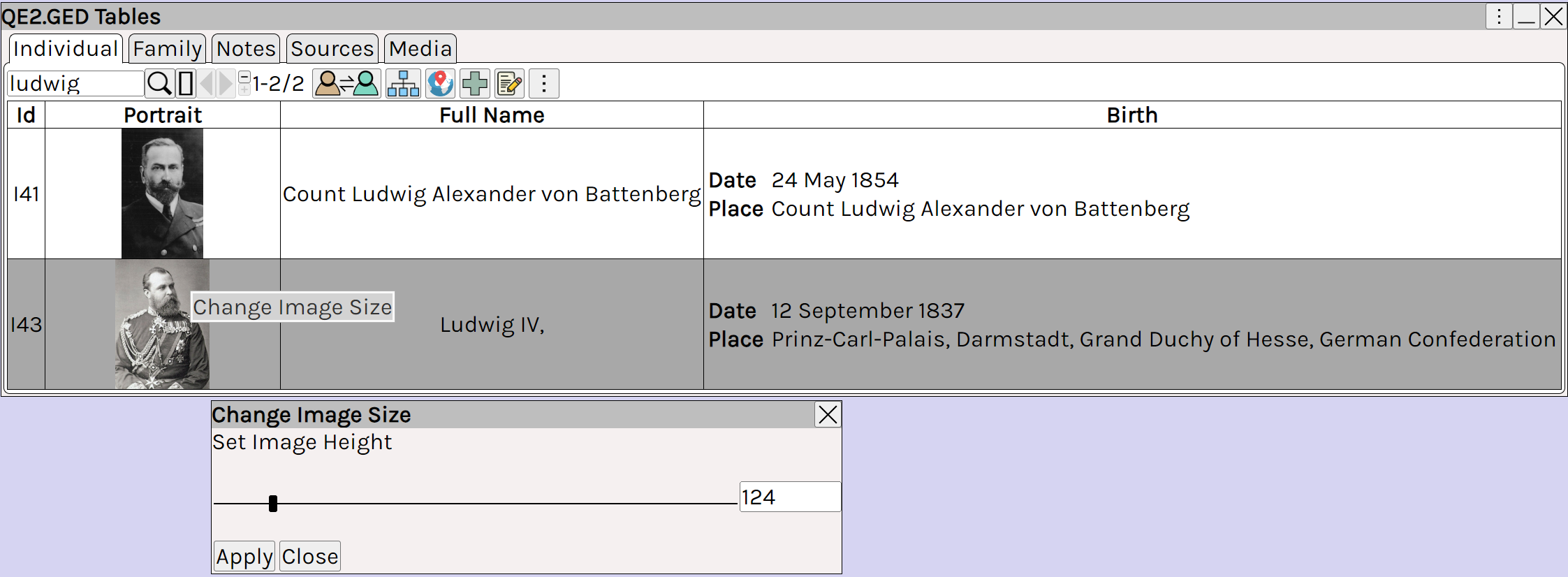
Right-click context menu over a portrait in augean.com showing the Change Media Size option and its slider dialog. This allows genealogists to adjust image heights for a cleaner, personalized view of their family history media and records.


Change the format of the table.
Right Click  ⟶  Table Options 
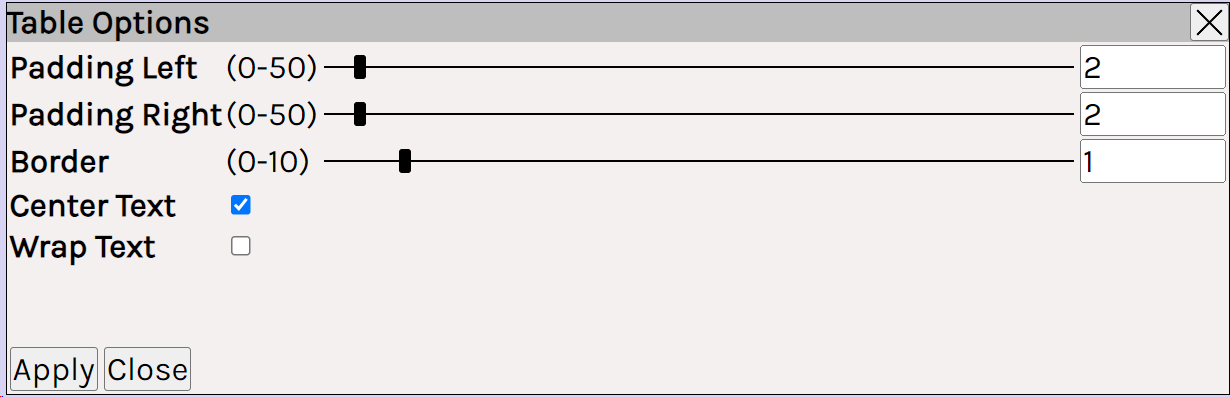
Table Options dialog box in augean.com displaying sliders for adjusting cell padding and borders, plus text alignment checkboxes. Enables family historians to customize their data layout for easier reading and streamlined research workflows.


Change the columns to display.
Right Click  ⟶  Change Displayed Columns 
Search for the column you want.
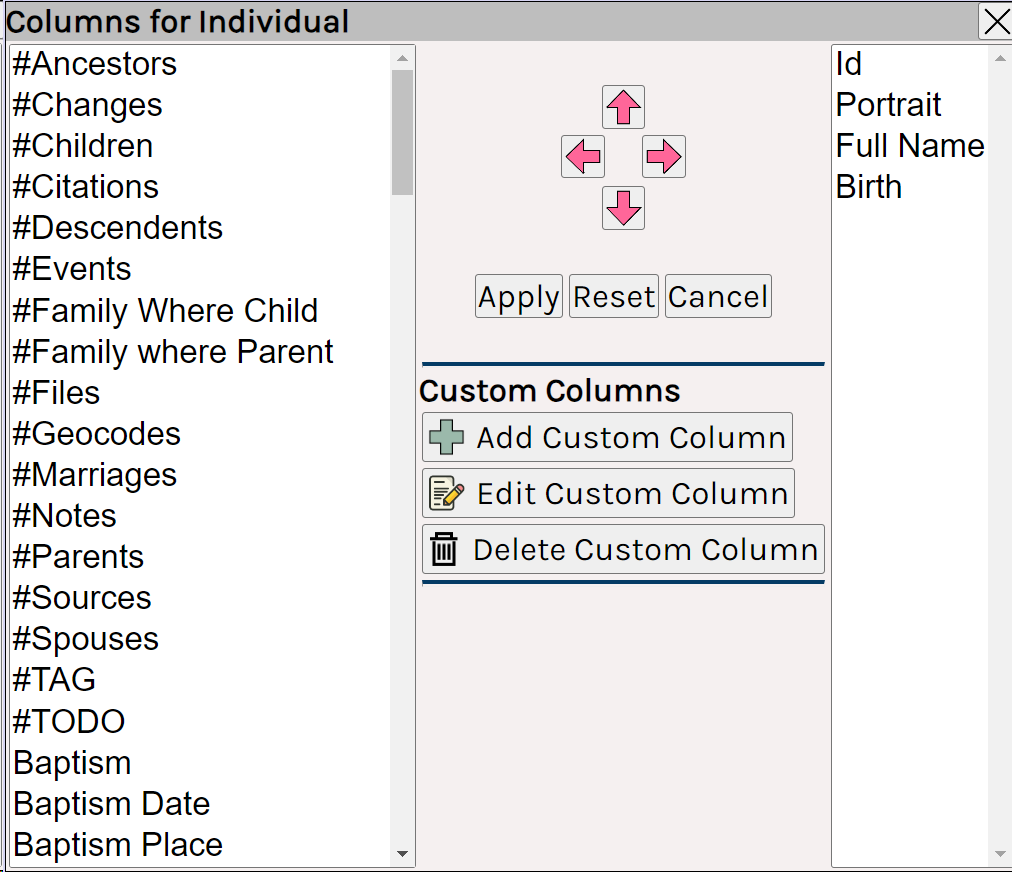
Change Displayed Columns dialog in augean.com showing options to search, add, and reorder data fields like Surname or Media. Helps genealogists tailor their table views to spot missing information and analyze specific genealogical records.


Resize the column by holding the mouse over the edge of the header column
The cursor will change to a resize arrow ↔
Press the left mouse button and drag to change the size
The background turns pink for the column during the resize operation.

  The mouse must be positioned in the table column header, as shown
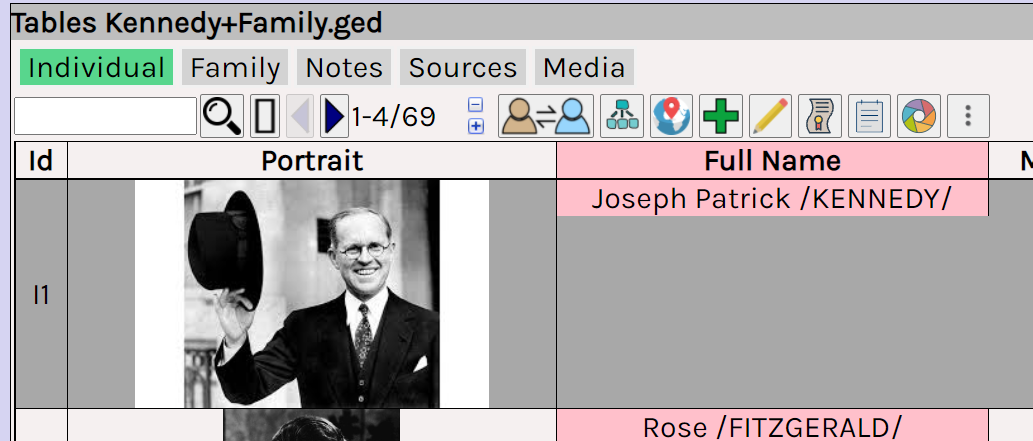
Internal column resizing feature in augean.com tables, highlighting the active Name and Birth column in pink with a green resize cursor. Demonstrates how users can adjust column widths to optimize their view of important family data.


Resize the last column to change the size of the window
Hold the mouse over the edge of the header column, press the left mouse button and drag.
  The mouse must be positioned in the table column header, as shown
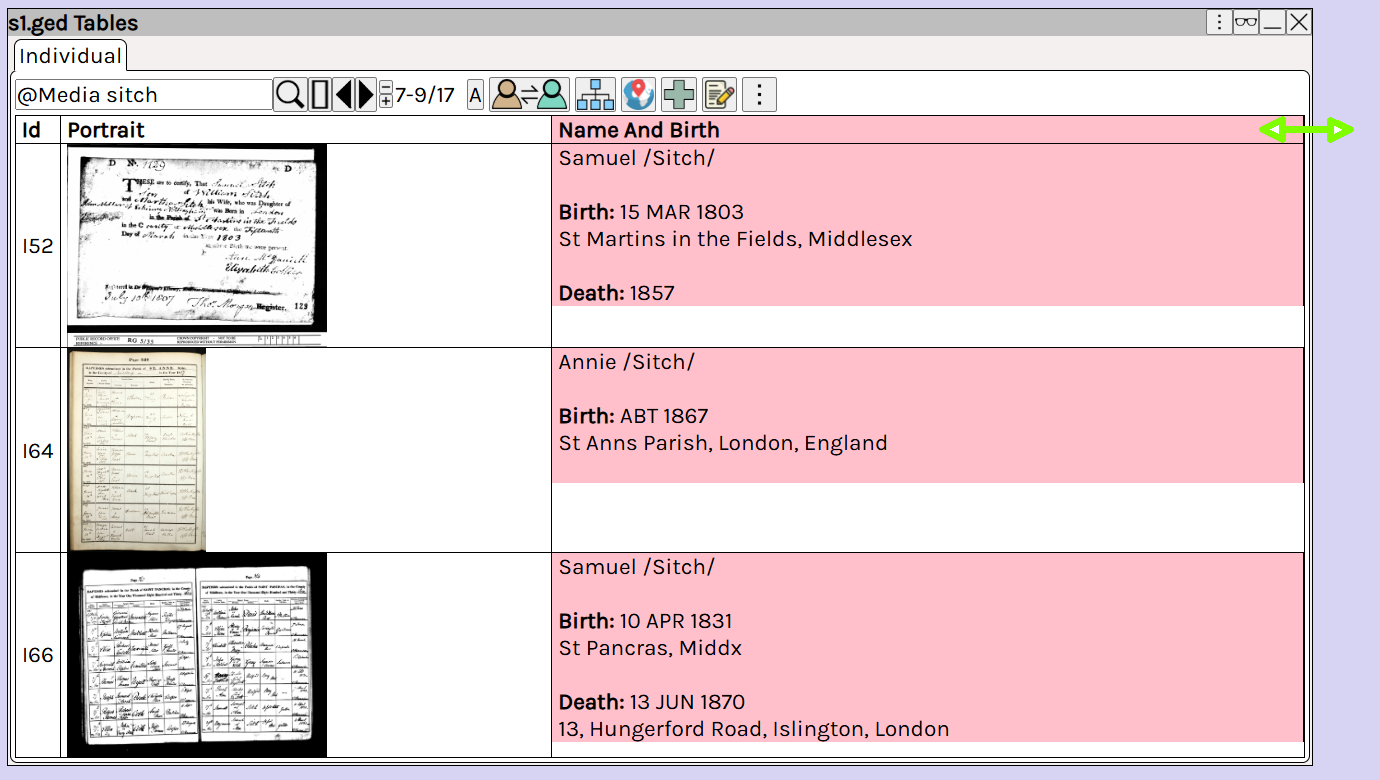
Resizing the entire table window in augean.com by dragging the right-most column edge, indicated by a pink highlight and green arrow. Shows how genealogists can expand their workspace to better review side-by-side census documents and individuals.


Selecting the view.
Use buttons  ⟶  ⟶  ⟶  to select the table view
Each view can be independently customized using  Right Click  ⟶  Change Displayed Columns